Tuesday, June 19, 2012

Invalid Boot.ini Error in Windows

To resolve this issue, start the computer from the Windows XP CD, start the Recovery Console, and then use the Bootcfg.exe tool to rebuild the Boot.ini file
.
To do this, follow these steps:
1. Configure the computer to start from the CD-ROM or DVD-ROM drive.
2. Insert the Windows XP CD-ROM into your CD-ROM or DVD-ROM drive, and then restart yourcomputer.
3. When you receive the "Press any key to boot from CD" message, press a key to start your computerfrom the Windows XP CD-ROM.
4. When you receive the "Welcome to Setup" message, press R to start the Recovery Console.
5. If you have a dual-boot or multiple-boot computer, select the installation that you have to use from the Recovery Console.
6. When you are prompted, type the administrator password, and then press ENTER.
7. At the command prompt, type bootcfg /list, and then press ENTER. The entries in your current Boot.ini file appear on the screen.
8. At the command prompt, type bootcfg /rebuild, and then press ENTER. This command scans the hard disks of the computer for Windows XP, Microsoft Windows 2000, or Microsoft Windows NT installations, and then displays the results. Follow the instructions that appear on the screen to add the Windows installations to the Boot.ini file. For example, follow these steps to add a Windows XP installation to the Boot.ini file:

a. When you receive a message that is similar to the following message,

 press Y: Total Identified Windows Installs:

1 [1] C:\Windows
Add installation to boot list? (Yes/No/All)

b. You receive a message that is similar to the following message:

Enter Load Identifier

This is the name of the operating system. When you receive this message, type the name of your operating system, and then press ENTER. This is either Microsoft Windows XP Professional or Microsoft Windows XP Home Edition.
c. You receive a message that is similar to the following:

 Enter OS Load options
When you receive this message, type /fastdetect, and then press ENTER.

Note The instructions that appear on your screen may be different, depending on the configuration of your computer.
9. Type exit, and then press ENTER to quit Recovery Console. Your computer restarts, and the updated boot list appears when you receive the "Please select the operating system to start"message.
Sunday, June 17, 2012

How to perform a Primary Restore of Active Directory

1. Reboot the domain controller.
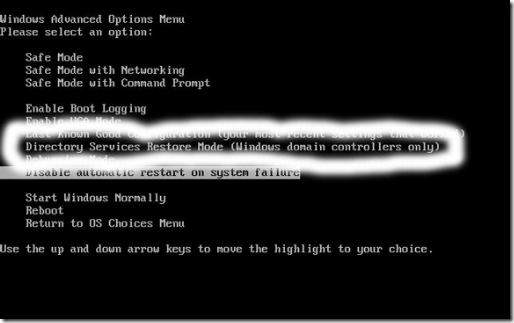
2. During startup, press F8 when prompted, and then select Directory Services Restore Mode (Windows DCs only) from the Windows Advanced Options menu. Press Enter. 
3. Choose the operating system that should be started. Press Enter.
4. When the Safe Mode logon prompt appears, enter the appropriate local administrator account information, and then click OK. Click OK when a message appears, advising that Windows is running in Safe Mode.
5. Click Start, All Programs, Accessories, System Tools, and then click Backup.
6. On the initial page of the Backup or Restore Wizard, click Next.
7. Ensure that the Restore files and settings option is selected on the Backup Or Restore page. Click Next. 8. On the What to Restore page, choose the backup which you want to use for the Primary restore process. Click Next.
9. Click Advanced.
10. On the Where to Restore page, leave the default setting of Original location, unchanged, and then click Next 
11. On the How to Restore page, choose the Replace existing files option. Click Next.
12. When the Advanced Restore Options page appears, enable the When restoring replicated data sets, mark the restored data as the primary data for all replicas checkbox. You can leave all other default settings on the Advanced Restore Options page unchanged.
13. Click Next.
14. Click Finish to start the Primary restore of Active Directory.
15. Reboot the server.

How to perform an Authoritative Restore of Active Directory

1. Perform a Normal Restore of Active Directory.
2. When prompted to restart the server, click No and then close the Windows Backup Utility.
3. Click Start, Run, and enter cmd in the Run dialog box. Click OK.
4. To open the Ntdsutil command-line utility, enter ntdsutil.
5. Enter authoritative restore.
6. To specify Active Directory, or components of Active Directory as authoritative, use one of the following methods:
  •  Enter restore database; this sets the domain and all configuration containers as authoritative. 
  •  Enter restore subtree, together with the distinguished name of the Active Directory object you want to mark as authoritative. 
  •  You can use the verinc option with either of the above commands, to explicitly set the version number. The option is useful when a different Authoritative restore needs to be performed on an existing Authoritative restore. 
7. When the Authoritative Restore Confirmation dialog box appears, asking whether the Authoritative restore should be performed, click Yes.
8. Enter quit, and enter quit again to close the Ntdsutil command-line utility.
9. Proceed to reboot the server 

Tuesday, June 5, 2012

How to perform a Normal Restore of Active Directory

1.Reboot the computer
2.During startup, press F8 when prompted to, and then select Directory Services Restore Mode (Windows DCs only) from the Windows Advanced Options menu. Press Enter.
3.Choose the operating system that should be started. Press Enter
4.When the Safe Mode logon prompt appears, enter the appropriate local administrator account information, and then click OK.
5.Click OK when a messag e appears, advising that Windows is running in Safe Mode
6.Click Start, All Programs, Accessories, System Tools, and then click Backup.
7.On the initial page of the Backup or Restore Wizard, click Next
8.Ensure that the Restore files and settings option is selected on the Backup Or Restore page. Click Next. 9.On the What to Restore page, choose the backup which you want to use for the restore process. Click Next.
10.Click Finish to immediately start a normal restore of Active Directory. If you want to configure advanced option settings, click Advanced, and not the Finish button.
11.When the Where to Restore page appears, choose one of the following optios from the Restore files to list box
  • Original location, this default setting restores files to their original locations 
  • Alternate location, if selected, you can specify a different location to which the files should be restored. 
  • Single folder; this option restores files to a single directory. 
12.Click Next.
13.Click OK if a message is displayed, warning you that a restore of system state data overwrites existing system state data.
14.When the How to Restore page opens, choose between the following options:
  • Leave existing files (Recommended); select this option if you do not want the restore to overwrite any existing files. 
  • Replace existing files if they are older than the backup files; if selected, files older than the backup files are replaced. 
  • Replace existing files; this option replaces all existing files with the backup files 
15.Click Next.
16.When the Advanced Restore Options page is displayed, you can select the following options
  • Restore security settings; is enabled by default. If you disable this checkbox, all files would be restored without any permissions. 
  • Restore junction points, but not the folders and file data they reference; when selected, the restore process is able to restore information on mounted drives. 
  • Preserve existing volume mount points; when selected, existing mounts are protected on the volume. Restore the Cluster Registry to the quorum disk and all other nodes; if applicable for this domain controller, the cluster quorum database is restored. 
  • When restoring replicated data sets, mark the restored data as the primary data for all replicas; this option should be enabled if you are performing a Primary restore of Active Directory. 
17.Click Next. 
18.Click Finish to start the Normal Restore of Active Directory.

Wednesday, February 29, 2012

INSTALLING A VIRTUAL OPERATING SYSTEM(HYPER-V) IN WINDOWS 2008

Open Server Manager and then navigate through the console tree to Roles -> Hyper-V -> Microsoft Hyper-V Server. If this is the first time that you have used Hyper-V, then you will be prompted to accept Hyper-V License Agreement. Once you accept the license agreement, the various Hyper-V options will be made available to you.
The first thing that you must do is to click on the Connect to Server link, located in the Actions pane. When you do, you will be prompted to select the computer that you want to connect to. Choose the Local Computer option, and click OK. You will now see the screen in
Figure A.
Figure A
This is the main screen that you will use for managing virtual machines.

Creating a New Virtual Server
To create a new virtual server, click the New -> Virtual Machine options found in the Actions pane. When you do, Windows will launch the New Virtual Machine Wizard. The wizard’s initial screen explains that you can click Next to begin customizing a virtual machine, but that you also have the option of clicking Finish right now to create a virtual machine that uses the default values. For the purposes of this article, we will create a custom virtual machine so that you can see the options that are available to you.

With that said, click Next and you will be prompted to enter a name and a location for the virtual machine that you are creating. I recommend using a descriptive name. The location is up to you, but if your server contains a striped RAID array, then that is a good location to choose for performance reasons

Click Next and you will be prompted to enter the amount of memory that is to be assigned to the new virtual machine. By default, new virtual machines are assigned 512 MB of RAM, but that isn’t really enough if you plan on running Windows Vista or Windows Server 2008. I would recommend 1 GB for Vista and 2 GB for Windows Server 2008 installations.

Click Next, and the wizard will prompt you to choose which network adapter you want to use for the machine’s virtual network connection. As you may recall, when you installed Hyper-V, you were given the opportunity to select one or more network adapters to be used by virtual machines. This option allows you to pick from the network adapters that you previously selected. The idea is that you can use a different network adapter on each virtual machine if you want, so that no single network adapter becomes over burdened.

When you have made your selection, click Next, and you will be prompted to choose the virtual hard drive that you want the machine to use, as shown in Figure B. As you can see in the figure, you can either create a new virtual hard drive, or you can use an existing one. Since there aren’t any existing virtual hard drives right now, we will have to create a new one. Windows defaults to creating a virtual hard drive that’s 127 MB in size, but you can create a drive of up to 2 TB if you want
Figure B

Click next, and you will be prompted to install an operating system on the new virtual machine. You have the option of installing an operating system later on, but you can also choose to install from a CD (or an .ISO file), a boot floppy, or from an installation server, as shown in Figure C
Figure C
You can choose to install an operating system now.

When you’ve made your choice, click Next. You will now see a summary of the options that you have created. If you have chosen to go ahead and install an operating system, then insert the operating system media, select the option to start the virtual machine, and click Finish. Windows will now launch the virtual machine and begin installing the operating system, as shown in Figure D
Figure D 
Windows will launch the new virtual machine and begin installing the guest operating system. And with that, we are done!

Tuesday, February 28, 2012

Desktop Virtualization

Many IT organizations now-a-days are looking at desktop virtualization to upgrade their entire approach to desktop management. Today, individual desktops are hard-coded combinations of OS, apps and user settings, and managed one-by-one on an ongoing basis. Desktop virtualization is a solution where one moving part doesn’t have to disrupt any of the other moving parts in order to make a change. It is the concept of separating a personal computer desktop environment from the physical machine through a client-server computing model.

One of the most significant benefits of desktop virtualization is that it gives IT administrators an easy and centralized way to manage employees' computers. Instead of each computer being separate, administrators create just a handful of VMs or VM templates for different roles within a company. For instance, a company may create one VM for each worker in a research and another for each sales representative. These VMs would include not just the operating system, but also any applications and drivers the employee would need. Such deployments work best where many employees need essentially the same functionality

Vendors providing support for desktop virtualization There are large numbers of vendors providing deskop virtualization solutions. Below mentioned are the top among the lot
Microsoft – Microsoft Virtual PC, Remote desktop services, etc.
Citrix -        Citrix XenDesktop
VMware -   VMware View, VMware v Sphere, etc.
Symantec -  Endpoint Visualization

Diagrammatic representation of desktop virtualization
Advantages
1.Simpler provisioning of new desktops.
2.Reduced downtime in the event of server or client hardware failures.
3.Desktop image management capabilities.
4.Secure remote access to the enterprise desktop environment.
5.Desktop Virtualization offers major savings on expending on physical computer systems by easily installing and configuring VMs on a single computer system

Limitations
1.Compatibility – Not all applications can be virtualized easily.
2.Potential security risks if the network is not properly managed.
3.Some loss of user autonomy and privacy.
4.Challenges in setting up and maintaining drivers for printers and other peripherals.
5.Difficulty in running certain complex applications such as multimedia.
6.Increased downtime in the event of network failures.
7.Complexity and high costs of VDI deployment and management

Thursday, February 9, 2012

Add the Command Prompt to the Windows Explorer Right-Click Menu

A hidden functionality in Windows allows you to right click on a directory, and select “Command Prompt Here” from the menu.
Here’s the registry hack to get this working. Make sure you back up your registry just in case. it’ll show you the step-by-step method, but you can skip down to the bottom for the alternate reg file.

Step-By-Step Method:
Type regedit.exe into the Start\Run dialog, and then navigate to the following registry key:

 HKEY_CLASSES_ROOT\Directory\shell Once you are at that key, right click and choose the New Key option:
Name the key “CommandPrompt” without the quotes and then double-click on the default value. Change the text to “Command Prompt Here” as seen here:
Right click on the new Command key and select New key, as you did before. Name the new key Command as well, and then double-click the default value of that key. Set the text of that key to this: cmd.exe /k cd %1 You can see what it should look like here:
Now when you right click on the folder, you should see this dialog:
That will open up a prompt like this:
Alternate method: You can create a text file named anything.reg, and insert this text into it:
Windows Registry Editor Version 5.00
[HKEY_CLASSES_ROOT\Directory\shell\CommandPrompt]
@=”Command Prompt:”
[HKEY_CLASSES_ROOT\Directory\shell\CommandPrompt\Command]
@=”cmd.exe /k cd %1
Double click on that file, and the text will be entered into the registry, and you’ll have the same right click command prompt.

Monday, January 30, 2012

How to Enlarge Data Partitions without losing data after Raid expansion in Linux


Scenario : Customer needs to expand Data volume after expanding array size in Linux.
Possibilities : only Last Partitions can be expanded through Resize2fs
Recommendation : Please ask customer to take backup of File systems/system.

Step to be followed: 

Suppose you have a Partition called c0d0p7 in last cylinder and mounted as a ext3.
#df -h
Filesystem                  Size   Used     Avail   Use%       Mounted on 

/dev/cciss/c0d0p2       15G       4.5G     9.3G    33%        /
/dev/cciss/c0d0p1       99M      12M     83M     12%       /boot
None                          4.0G      0          4.0G     0%        /dev/shm
/dev/cciss/c0d0p6       46G      85M     44G      1%        /name1
/dev/cciss/c0d0p7       46G      103M   44G      1%        /name2

1) Un mount  that file system/Mount point
2) Now you have to remove Journal feature ( if it is ext3 file system) from the file system
# tune2fs -O ^has_journal /dev/cciss/c0d0p7 # tune2fs 1.35 (Date)
Now you have to run e2fsck command to check file systems.
3) root@ff13manish /]# e2fsck -f -y /dev/cciss/c0d0p7 
e2fsck 1.35 (Date) Pass
Pass 1: Checking inodes, blocks, and sizes Pass
Pass 2: Checking directory structure Pass
Pass 3: Checking directory connectivity Pass
Pass 4: Checking reference counts Pass
Pass 5: Checking group summary information
/Name2: 16/6111232 files (6.3% non-contiguous), 209772/12209392 blocks
4) Execute the fdisk -l command 
Disk /dev/cciss/c0d0: 220.1 GB, 220122071040 bytes
255 heads, 63 sectors/track, 26761 cylinders
Units = cylinders of 16065 * 512 = 8225280 bytes
Devic Boot                         Start       End              Blocks           Id        System
System /dev/cciss/c0d0p1      1            13              104391            83       linux
/dev/cciss/c0d0p2                14           1925           15358140        83       linux
Linux /dev/cciss/c0d0p3       1926       3455           12289725        82      linux swap
/dev/cciss/c0d0p4               3456         26761       187205445      5         Extended
/dev/cciss/c0d0p5               3456         9535         48837568+      83       Linux
/dev/cciss/c0d0p6              9536          15615       48837568+       83      Linux
/dev/cciss/c0d0p7             15616        21695         48837568+       83    Linux Original Cylinder size with 46GB

Command (m for help): quit 

“Delete the Last partition and create it again”.

5) [root@ff13manish /]# fdisk /dev/cciss/c0d0

The number of cylinders for this disk is set to 26761. There is nothing wrong with that, but this is larger than 1024, and could in certain setups cause problems with:

a.Software that runs at boot time (e.g., old versions of LILO)
b.Booting and partitioning software from other OS’s (e.g., DOS FDISK, OS/2 FDISK)
Command (m for help): d
Partition number (1-7): 7

“Don’t Quit here  with save option , you have to continue without coming out from fdisk Menu”
Command (m for help): n
First cylinder (15616-26761, default 15616)
Using default value 15616
Last cylinder or +size or +sizeM or +sizeK (15616-26761, default 26761)

Using default value 26761
Command (m for help): p 
Disk /dev/cciss/c0d0: 220.1 GB, 220122071040 bytes
255 heads, 63 sectors/track, 26761 cylinders
Units = cylinders of 16065 * 512 = 8225280 bytes

Device Boot                   Start        End        Blocks            Id     System
/dev/cciss/c0d0p1 *           1             13        104391             83     linux
/dev/cciss/c0d0p2             14           1925     15358140         83     Linux
/dev/cciss/c0d0p3             1926       3455     12289725         82     Linux swap
/dev/cciss/c0d0p4             3456       26761   187205445       5      Extended
/dev/cciss/c0d0p5             3456       9535     48837568+      83     Linux
/dev/cciss/c0d0p6             9536      15615    48837568+      83     Linux
/dev/cciss/c0d0p7             15616    26761    89530213+      83     Linux (Now Size moves to 89 GB)


Command (m for help): w
The partition table has been altered!

Calling ioctl() to re-read partition table.

WARNING: Re-reading the partition table failed with error 16: Device or resource busy.
The kernel still uses the old table. The new table will be used at the next reboot. Syncing disks.
6) Execute Partprobe command 
# partprobe
7) Execute Reszie2fs command
[root@ff13manish /]# resize2fs /dev/cciss/c0d0p7
resize2fs 1.35 (Date)
Resizing the filesystem on /dev/cciss/c0d0p7 to 22382553 (4k) blocks
The filesystem on /dev/cciss/c0d0p7 is now 22382553 blocks long.

8) Now enable ext3 feature in filesystems
tune2fs -j /dev/cciss/c0d0p7
tune2fs 1.35 (Date)
Creating  journal inode: done
This filesystem will be automatically checked every 22 mounts or 180 days, whichever comes first.
Use tune2fs -c or -i to override.
Now check by mounting the filesystems
[root@ff13manish /]# mount  -t ext3 /dev/cciss/c0d0p7  /Name2
[root@ff13manish /]# df -h
Filesystem               Size         Used     Avail     Use%     Mounted on 

/dev/cciss/c0d0p2        15G      4.5G    9.3G        33%          /
/dev/cciss/c0d0p1        99M      12M     83M      12%         /boot
None                             4.0G     0       4.0G        0%          /dev/shm
/dev/cciss/c0d0p6        46G      85M     44G       1%          /Name1
/dev/cciss/c0d0p7        85G      107M    83G      1%         /Name2

Check your data :
[root@ff13vel /]# cd /name2
[root@ff13vel name2]# ls
lost+found  report-4b79378d-0000265d-00000003.zip  RHEL 4 AS UTILITY FOR LINUX
[root@ff13vel name2]# ls -al            
total 104
drwxr-xr-x   4 root root  4096 Feb 17 11:27 .
drwxr-xr-x  29 root root  4096 Feb 17 10:08 ..
drwx------2 root root 16384 Feb 16 17:01 lost+found
-rw-r--r--1 root root 67517 Feb 15 18:27 report-4b79378d-0000265d-00000003.zip
drwxr-xr-x   2 root root  4096 Feb 15 16:57 RHEL 4 AS UTILITY FOR LIN

Sunday, January 29, 2012

Procedure to remove Khatra.exe virus manually

1. Go to task manager and select regsvr.exe(if found), gHost.exe , khatra.exe , Xplorer.exe rt click and select end process tree. press WIN+r or start>RUN

2.type cmd and hit enter
3.GO to the the drive where your OS is installed
4.In the command prompt make sure you get the command line as c:\ or d:\ (this can be achieved by the command "cd .." without quotes)
5.Type attrib -s -h -r khatra.exe Repeat the same process for the location c:\windows\system32
6.type del khatra.exe
7.Follow the same process for gHost.exe & Xplorer.exe as they are also part of the virus. To make sure that the virus is out of you pc ,
check your registry
1.win+R type regedit
2.ctrl+F type in search one by 1 the names of the
3.processes i.e khatra,gHost,Xplorer
4.search the entire registry n go-on deleting the values you find.

Tuesday, January 24, 2012

Maintenance Best Practices for Adaptec RAID Solutions

RAID is the most common method of data protection and most companies rely on the redundancy provided by RAID at various levels to protect them from disk drive failures. RAID’s ability to protect data has become increasingly challenging with the exponential increase in drive capacities and the increased use of less reliable drives.RAID cannot protect data against virus attack, human error, data deletion, or natural or unnatural disaster. RAID cannot protect data beyond its advertised disk drive redundancy (for RAID-1, RAID-10, and RAID-5 one drive failure, for RAID-6 two drive failures, for example). Adaptec Technical Support often sees cases where an array is in a degraded state for a longer period of time and data loss then occurs when a further drive finally fails. The best RAID controller cannot help in this situation. In addition to timely maintenance, periodic backup still remains one of the most critical practices in data operations

THE EFFECT OF MODERN LARGER DISK SIZES AND DRIVE QUALITY ISSUES ON RAID

Hard drive media defects and other drive quality issues have steadily improved over time, even as drive sizes have grown substantially. However, hard drives are not expected to be totally free of flaws. In addition, normal wear on a drive may result in an increase in media defects, or “grown defects,” over time. The data block containing the defect becomes unusable and must be “remapped” to another location on the drive. If a bad block is encountered during a normal write operation, the controller marks that block as bad and the block is added to the “grown defects list” in the drive’s NVRAM. That write operation is not complete until the data is properly written in a remapped location. When a bad block is encountered during a normal read operation, the controller will reconstruct the missing data from parity operations and remap the data to the new location. A condition known as a double fault (“bad stripe”) occurs when a RAID controller encounters a bad block on a drive in a RAID volume and then encounters an additional bad block on another hard drive in the same data stripe. This double fault scenario can also occur while rebuilding a degraded array, leaving the controller with insufficient parity information to reconstruct the data stripe. The end result is a rebuild failure with the loss of any data in that stripe, assuming the stripe is in the user data area.
Today, hard drive capacities have increased remarkably, and the likelihood has grown that one or more media defects will occur over the lifespan of the drive. In addition, large arrays take longer to rebuild than small arrays, thus increasing the amount of time the array is not redundant

OVERVIEW OF STEPS THAT CAN BE TAKEN IN KEEPING WITH RAID BEST PRACTICES 
Perform all recommended driver, controller firmware, and Storage Management application (Adaptec Storage Manager) updates

Install Adaptec Storage Manager:
 Adaptec Storage Manager helps you to monitor and maintain Adaptec RAID controllers, enclosures, and disk drives in your storage space from a single location. When Adaptec Storage Manager is installed on a system, the Adaptec Storage Manager Agent is also installed automatically as a service. It’s designed to run in the background, without user intervention, and its job is to monitor and manage system health, event notifications, tasks schedules, and other on-going processes on that system. It sends notices when tasks are completed successfully, and sounds an alarm when errors or failures occur on that system.

Run regular consistency checks on the system: 
Verification is designed to proactively detect hard disk media defects while the array is online and redundant. A RAID-5 or RAID-6 array is inconsistent when the data and parity do not match. Likewise, a RAID-1 array is inconsistent when the data and mirror do not match.
The verification process issues commands to each drive in the array to test all sectors. When a bad sector is found, the RAID controller instructs the hard drive to reassign the bad sector, and then reconstructs the data using the other drives. The affected hard drive then writes data to the newly assigned good sector. These operations continue so that all sectors of each configured drive are checked, including hot spares. As a result, bad sectors can be remapped before data loss occurs.

Two run modes are available to help enhance flexibility and data protection 
1. Background Consistency Check (auto mode): In this mode, the tool is always on. Adaptec Storage Manager continually and automatically checks your logical drives once they’re in use. Once Background Consistency Check has checked all sectors of the array, it repeats this check indefinitely. As its name indicates, Background Consistency Check is always a background or secondary process. Data I/O remains the highest priority for the RAID subsystem.
Note: With this feature enabled, there may be an impact to performance. To enable Background Consistency Check using Adaptec Storage Manager:
• In the Enterprise View, right-click the controller.
• Select Background Consistency Check and then click Enable

Once enabled, the Background Consistency Check period can be adjusted: 
• In the Enterprise view, right-click the controller.
• Click on Background Consistency Check, then select Change period. The Change Background Consistency Check period window opens.
• Adjust the slider control from Very Slow (365 days) to Fast (10 days). Alternatively, in the New Period field, use the arrow keys to increase or decrease the setting.
• Click OK.

 2. Verify with fix (manual mode):
 This mode is used to perform a single, quick check of the array. After the verification process has checked all sectors of the array, it stops and will not start again until started manually by the administrator. In manual mode, the verification process commands are given a higher priority than in Auto mode so that the check completes significantly faster.
Verify with fix is a data-level check and requires more controller resources to read and compare data. Also, because of the additional resources required, verify with fix is not designed to run continuously. Rather, it should be scheduled to run at a regular interval, preferably during periods of low drive activity, or during system maintenance.

To verify and fix a logical drive using Adaptec Storage Manager:
• In the Logical Devices View, right-click the logical drive.
• Select Verify with fix and confirm that you want to verify
• To begin the verification immediately, click Yes. To schedule the verification, click Schedule, and then set the date and time. You can also choose to set the verification as a recurring task. While the verification is in progress,
the logical drive is shown as an animated icon to indicate that the task is in progress. When the verification is complete, an event notice is generated in the local system’s event log.

Monitor Storage Manager Event Logs: You can see status information and messages about the activity (or events) occurring on your storage space by checking component properties and looking at the Event Viewer and status icons in Adaptec Storage Manager. To open a full-screen version of the event log, click the Events button in the tool bar The event log lists activity occurring in your storage space, with the most recent event listed at the top. Double-click any event to open the Configuration Event Detail window to see more information in an easier-to-read format. Adaptec Storage Manager can be configured to send email messages (or notifications) about events on a system in your storage space. We recommend doing this if your storage space is not managed by a dedicated person, or if that particular system is off-site or not connected to a monitor. Email notifications can help you monitor activity on your entire storage space from any location, and are especially useful in storage spaces that include multiple systems running the Adaptec Storage Manager Agent only.
To set up email notifications:
1.In the Configure menu (on the tool bar), select the system you want, and then select Email Notifications. 2.The Email Notifications window opens. The SMTP Server Settings window opens if you haven’t set up email notifications previously.
3.Enter the address of your SMTP server and the “From” address to appear in email notifications. If an email recipient will be replying to email notifications, be sure that the “From” address belongs to a system that is actively monitored.
4.Click OK to save the settings.
5.In the Email Notifications window tool bar, click Add email recipient. The Add Email Recipient window opens.
6.Enter the recipient’s email address, select the level of events for which the recipient will receive an email, and then click Add. Repeat this Step to add more email recipients. Click Cancel to close the window.

You can also set Adaptec Storage Manager to send status alerts about a specified system to all users who are logged into your storage space. When you set Adaptec Storage Manager to broadcast event alerts, all logged-in users receive messages about all types of events. In Windows, these alerts appear as pop-up messages; in all other operating systems, these alerts appear as console messages

Note:Replace drives that have either failed completely, or are starting to show signs of failing (medium errors, S.M.A.R.T. errors, etc.) immediately

Install Windows Recovery Console in Windows Boot Menu

If you want to repair Windows installation but can’t get into the Recovery Console of the CD Rom as was the problem of one of our readers, then here is way to install the Recovery Console directly inside the Windows Boot Menu

if you want to access the recovery console but you can do this directly from your drive and not CD, so that you don’t have to search the CD in case of a Windows Failure this will be a good procedure
Steps:
1. Insert the Windows XP CD in the CD Drive but make sure that both the service pack in the CD and the one installed are same.
2. Now open Run Box, and type the command X:\i386\winnt32.exe /cmdcons where X is your CD drive letter.
3. A Windows Setup box will come up, click Yes to proceed

4. Another dialog box will come up reading “Windows Recovery Console has been successfully installed”.

Just restart the computer to start using the Recovery Console directly in the computer without the CD

Monday, January 23, 2012

Hide or Show ‘Safely Remove Hardware’ icon from Taskbar

A small informative post for today that lets you know (in case you don’t already know), how to remove and show the “Safely Remove Hardware” icon from Taskbar.
Hiding or removing the icon is not that difficult and if you want to clear your task bar of the green icon then following are the steps
Steps:
1. Right click on the Task Bar and select properties 
2. Now click on the Customize button and in case if it is greyed out then check the box “Hide Inactive Icons” 3. In the list of the Current Items, change the behavior of “safely Remove Hardware” from Hide when Inactive to Always Hide
This is it; the icon will not appear again. Reverse process will make the icon to appear again

Using Windows 7 or Vista Compatibility Mode

Windows Vista or Windows 7, will have problems running some older versions of applications, just because so much has changed under the hood from Windows XP days. There is a compatibility mode that can be easily set per application. To configure the compatibility mode for an application, just locate the installation directory and right click on the .exe, selecting Properties from the menu.
Select the Compatibility tab:
You can choose to run the program in Windows XP compatibility mode, or even all the way back to Windows 95 compatibility.
Probably the most useful setting to start off with would be to disable the visual themes and desktop composition, if you can’t get things working. If you are trying to run a video game, you will often need to choose “Run this program as an administrator”. You’ll have to play around with it, but most likely you can get your application working this way.

Friday, January 20, 2012

Disable AutoPlay in Windows Vista

Windows Vista’s AutoPlay options are a great improvement over Windows XP in terms of flexibility, but unfortunately there are so many options that it can be confusing, especially since there’s no specific mention of USB Flash drives in the options. Open your Control Panel, and then click on “Play CDs or other media automatically” to open the AutoPlay dialog.
Disable AutoPlay Globally
The quickest way to disable AutoPlay entirely is to just uncheck the box for “Use AutoPlay for all media and devices”, which should usually work.

Disable for a Single 
Type You can choose a setting in the drop-down menu for a single type of drive, for instance Audio CD in this example. For this to work you’ll have to make sure to keep the global autoplay option on, and then choose the specific setting in the drop-down.

Disable for just Removable (flash) Drives 
The problem here is that while there are settings for Audio CDs and DVDs, there’s nothing specifically for USB flash drives. Windows will determine the drive type based on the content it finds on the flash drive itself, so that’s what we’ll need to change In order to disable AutoPlay for the removable drives, you should change all of the following to Take no action: Software and games, Pictures, Video files, Audio files, and Mixed content.

Disable Through Group Policy 
If you’d like to disable it entirely you can use the Group Policy editor on the Business and Ultimate versions of Vista Open up gpedit.msc through the start menu search box, browse to Windows Components \ AutoPlay Policies, and change the value of “Turn off Autoplay” to enabled.

You can choose whether to disable for just removable devices, or entirely.

Run Windows XP on Windows 7

it’s been a long time since the release of Windows 7 but there are few individuals who are not impressed with Windows 7 and want to continue with XP

Windows XP is so simple and easy to use that not everyone wants to come out of XP. So if you are using Windows 7 but also wants XP back then Windows 7 has something interesting for you.

 The feature is called “XP mode on windows 7” and it can enable you to continue with XP while using Windows 7. This feature works with the feature called Windows Virtual PC. Other advantage of this feature is that while Windows 7 is compatible with most of the applications in XP, in case there is some application that runs only on XP then you can run it easily.

The only thing to note is that you must have Windows 7 Professional, Enterprise, or Ultimate to run Windows XP Mode. Download link for the same is given below

http://www.microsoft.com/windows/virtual-pc/download.aspx

Wednesday, January 4, 2012

Troubleshooting Driver Problems with Tape Drives, Library or Autoloaders

Tape drives and Libraries or Autoloaders do not necessarily require drivers, like a hard drive or CD-Rom. But they do need a 3rd Party Backup Software to manage the transfer of data from the server or hard drive, to the tape drive. If the software requires a driver, it will be included by that software vendor as part of the package. When the software is installed, it will search the bus for supported hardware, and will install the appropriate driver. If the software vendor does not provide a driver, they will give you information on the driver that is required. 
Backup utilities that are provided with operating systems may not include drivers. Generic drivers are available on the Principal Vendor website for use with these utilities
DO NOT INSTALL THE GENERIC DRIVER IF YOUR SOFTWARE PROVIDES ONE. The generic driver will interfere with your software’s ability to communicate with the tape drive. They are also difficult to fully remove once installed. 
DO NOT INSTALL MULTIPLE DRIVERS. Doing so will cause conflicts and failures. If you install multiple backup utilities, it also means multiple drivers are installed. It’s best to remove a backup utility before installing another one to avoid problems
YOU MUST TURN OFF THE SERVICES OF YOUR BACKUP SOFTWARE BEFORE ATTEMPTING TO USE ANY PRINCIPAL VENDOR DIAGNOSTICS TOOL. The backup services and drivers will prohibit diagnostics tools from communicating with the tape drive. 

Following are indications of multiple driver installation problems: 
•The Diagnostics tool fails
•The tape driver and/or library are reported in the SCSI bios and environment, but not in the backup software. 
To determine what driver is installed
1. Right click on My Computer. 
2. Select Manage then Device Manager. 
3. Right click in Plus Box next to Device Category
4. Right click on Device name and select Properties
5. Click the Driver Tab. The 2nd line shows the Driver Provided. 

Share

Twitter Delicious Facebook Digg Stumbleupon Favorites More